
A while ago I watched this YouTube video where the creator builds a wireless split keyboard called Caldera. I really liked how clean and minimal it looked, so I decided to build the exact same one for myself.
I downloaded the open-source PCB files from the video, ordered the boards, 3D-printed the orange case, and soldered everything at home. Here is how my build — cloudevol — turned out:
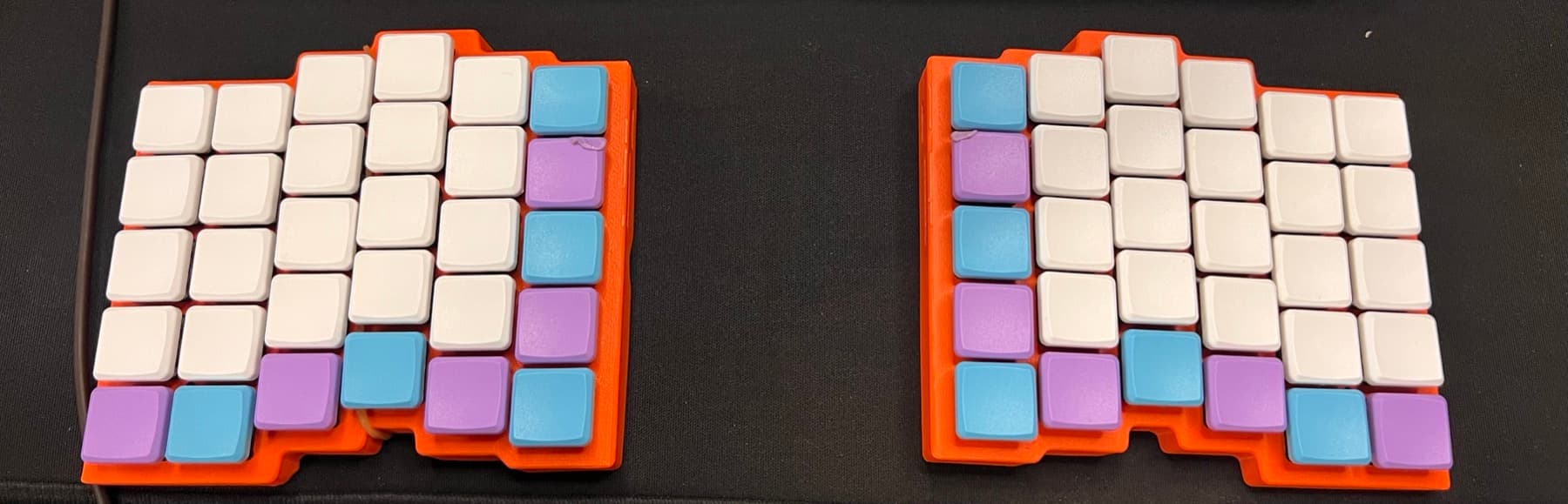
In this post, I want to share the story of building it — and how I ended up fixing a broken column of keys by soldering a paperclip inside the keyboard. Lets jump straight in!
It's a 60-key wireless split keyboard (30 keys on the left, 30 on the right). There are no cables at all.
Each side has its own tiny brain (a nice!nano v2 chip) and a small battery. They run open-source firmware called ZMK:
Right side: Whenever you press a key on the right half, it sends that press wirelessly to the left half.
Left side (Main): Collects key presses from both sides and sends them to my Mac over Bluetooth under the name cloudevol.
# config/caldera.conf
CONFIG_ZMK_SLEEP=y
CONFIG_BT_CTLR_TX_PWR_PLUS_8=y
CONFIG_ZMK_KEYBOARD_NAME="cloudevol"
CONFIG_ZMK_HID_CONSUMER_REPORT_USAGES_BASIC=yAfter soldering 60 switches, 60 tiny diodes, and the two controller chips, I plugged the keyboard in to test it.
Almost everything worked, except one vertical line of keys on the left side: 5, T, G, B, and the thumb FN key. None of them responded when pressed.
On a keyboard PCB, keys in the same vertical column share a single wire (trace) going into one pin on the chip. If one key breaks, it's a bad switch. If the whole column dies together, the pin feeding that column is broken.
While soldering the chip onto the board, Pin 017 (the pin for that column) accidentally touched ground (GND) underneath the chip. Because the chip was already soldered flat onto the board, I couldn't reach underneath with my soldering iron to clean it.
Desoldering a 24-pin chip without ruining the board is almost impossible. Instead, I looked for a simpler workaround:
The chip had spare pins that weren't being used at all — like Pin 104. What if we just tell the software to use Pin 104 for that column instead of the broken Pin 017, and connect Pin 104 to the T key with a piece of wire?
I didn't have any thin wire at home. I looked at my desk, saw a metal paperclip (ataç), bent it into shape, and soldered it from Pin 104 directly to the T switch socket. Then I changed one line in the config:
// caldera_left.overlay
&kscan0 {
    col-gpios
        = <&pro_micro 3 GPIO_ACTIVE_HIGH>
        , <&pro_micro 4 GPIO_ACTIVE_HIGH>
        , <&pro_micro 5 GPIO_ACTIVE_HIGH>
        , <&pro_micro 6 GPIO_ACTIVE_HIGH>
        , <&pro_micro 7 GPIO_ACTIVE_HIGH>
        , <&pro_micro 8 GPIO_ACTIVE_HIGH> // changed from 2 (Pin 017) to 8 (Pin 104)
        ;
};
I updated the keyboard and pressed T. It still didn't work!
At first, it made no sense. Pin 104 was healthy, and the paperclip was carrying electricity to the T key. Why wasn't it typing?
Looking at the PCB design file gave away the answer:
Even though I added the paperclip from Pin 104, the copper line on the board was still connected to the broken Pin 017! So all the electricity coming from Pin 104 was just flowing into the broken pin and disappearing.
To stop the electricity from leaking back into Pin 017, I took a utility knife and scratched through the tiny copper line on the board right between T and 5:
As soon as I cut that line, T, G, B, and FN started working immediately!
5 Key With Code Instead of a KnifeLook at the diagram above again. Because I cut the line between T and 5, the 5 key stayed on the broken side of the cut.
I could have cut another part of the board and soldered a second wire to rescue that switch too. But honestly, why risk scratching a working board when we can fix it in software?
Normally, the top-left row is ESC, 1, 2, 3, 4, 5. Since the 6th key on that row was dead, I just shifted the numbers one key to the left in the code (1, 2, 3, 4, 5) and moved ESC to FN + 1:
// caldera.keymap
default_layer {
    // Shifted top-left row: [1] [2] [3] [4] [5] [unused]
    bindings = <
        &kp N1   &kp N2   &kp N3   &kp N4    &kp N5   &kp N5     &kp N6  &kp N7  &kp N8  &kp N9  &kp N0  &kp BSPC
        &kp TAB  &kp Q    &kp W    &kp E     &kp R    &kp T      &kp Y   &kp U   &kp I   &kp O   &kp P   &kp BSLH
        // ...
    >;
};

lower_layer {
    // FN + 1 now acts as ESC (and Shift + FN + 1 types ~)
    bindings = <
        &gresc   &kp C_BRI_DN  &kp C_BRI_UP  &kp F3   &kp F4     &kp F5  // ...
    >;
};Here is how the layout looks now. The orange keys on the left side are running through the paperclip soldered to Pin 104:
* Orange keys (T, G, B, FN) work via the paperclip on Pin 104.
FN + 1 = ESC | FN + D/F = ( ) | FN + L/; = [ ] | FN + O/P = { }
In software, if you make a mistake, you just hit cmd + z. In hardware, a tiny solder mistake underneath a chip can cost you hours with tweezers, a knife, and a paperclip.
Still, seeing cloudevol show up on my Mac's Bluetooth menu and typing on something I soldered myself feels great. Now I just need a few days on Keybr to get used to typing on a split keyboard!
→ Found this fun? Let me know or share it with a fellow dev 🚀